A complete writing studio.
See how it works.
From your library of projects through planning, writing, and the full proofing pipeline — a guided tour of every key feature.
→Choose a callout below each image to explore that part of the studio
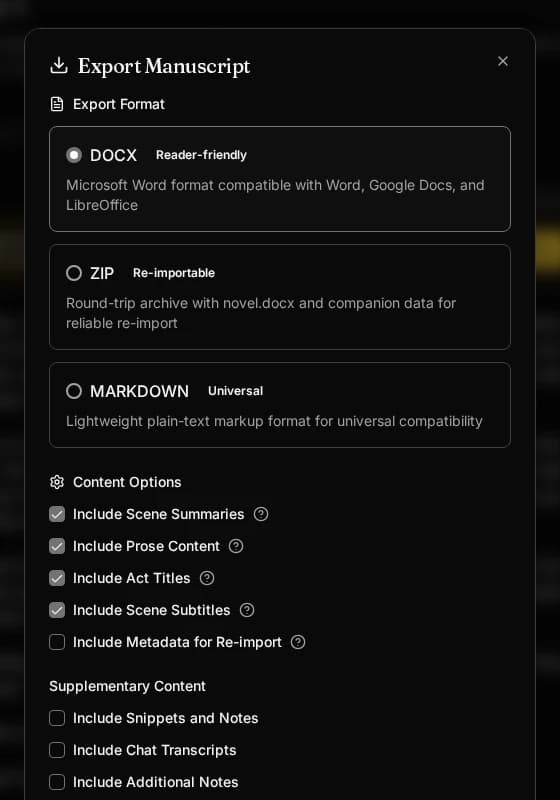
Your library of books
Every project starts on the shelf. Manuscripts appear as cover cards grouped by series, with word count and draft stage in view, so the next book to work on is one click away.
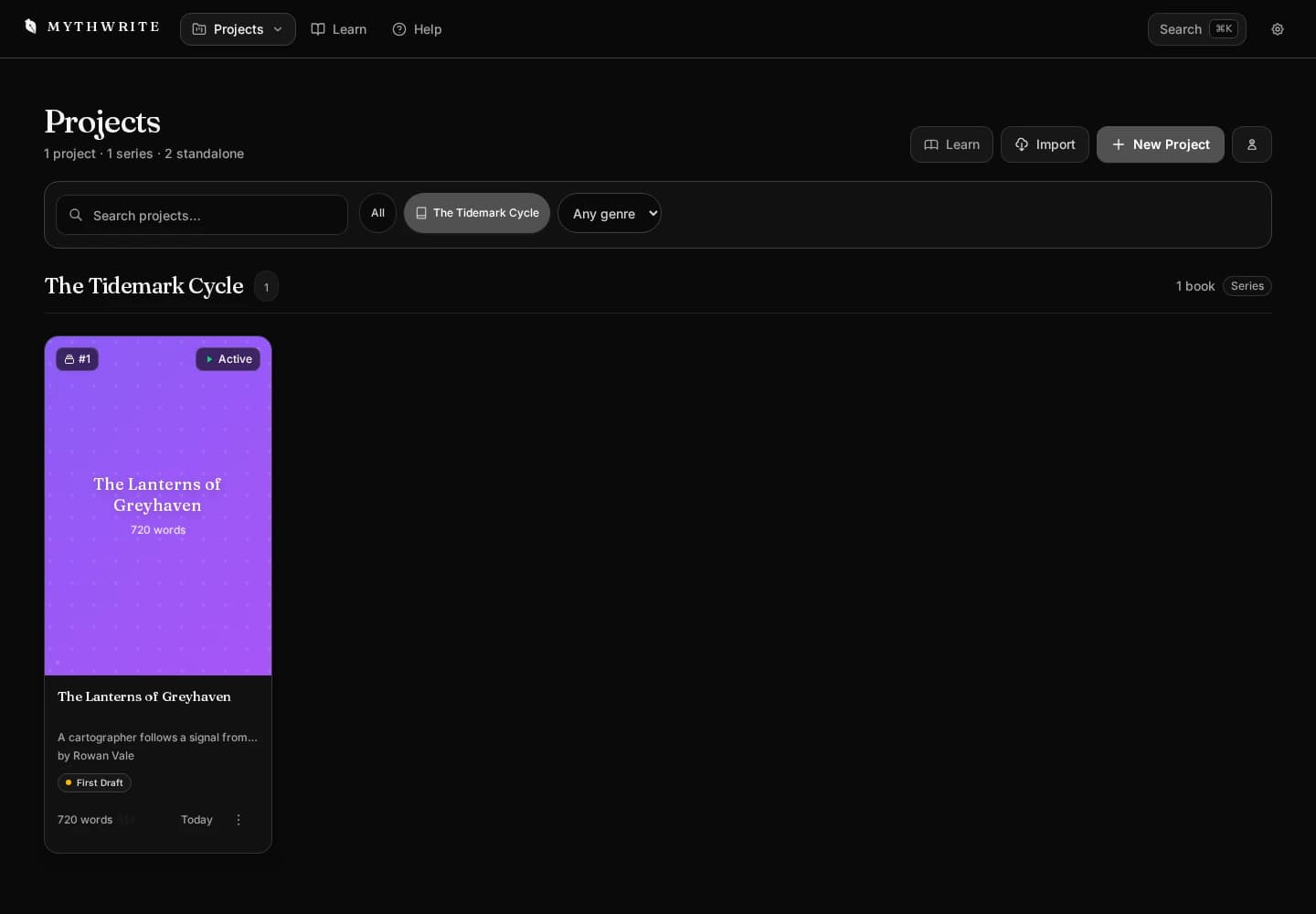
Structure your whole story
Planning Overview lays out every chapter as a card, and each chapter holds its scene cards with a summary, point of view and draft stage, so the shape of the book reads at a glance.
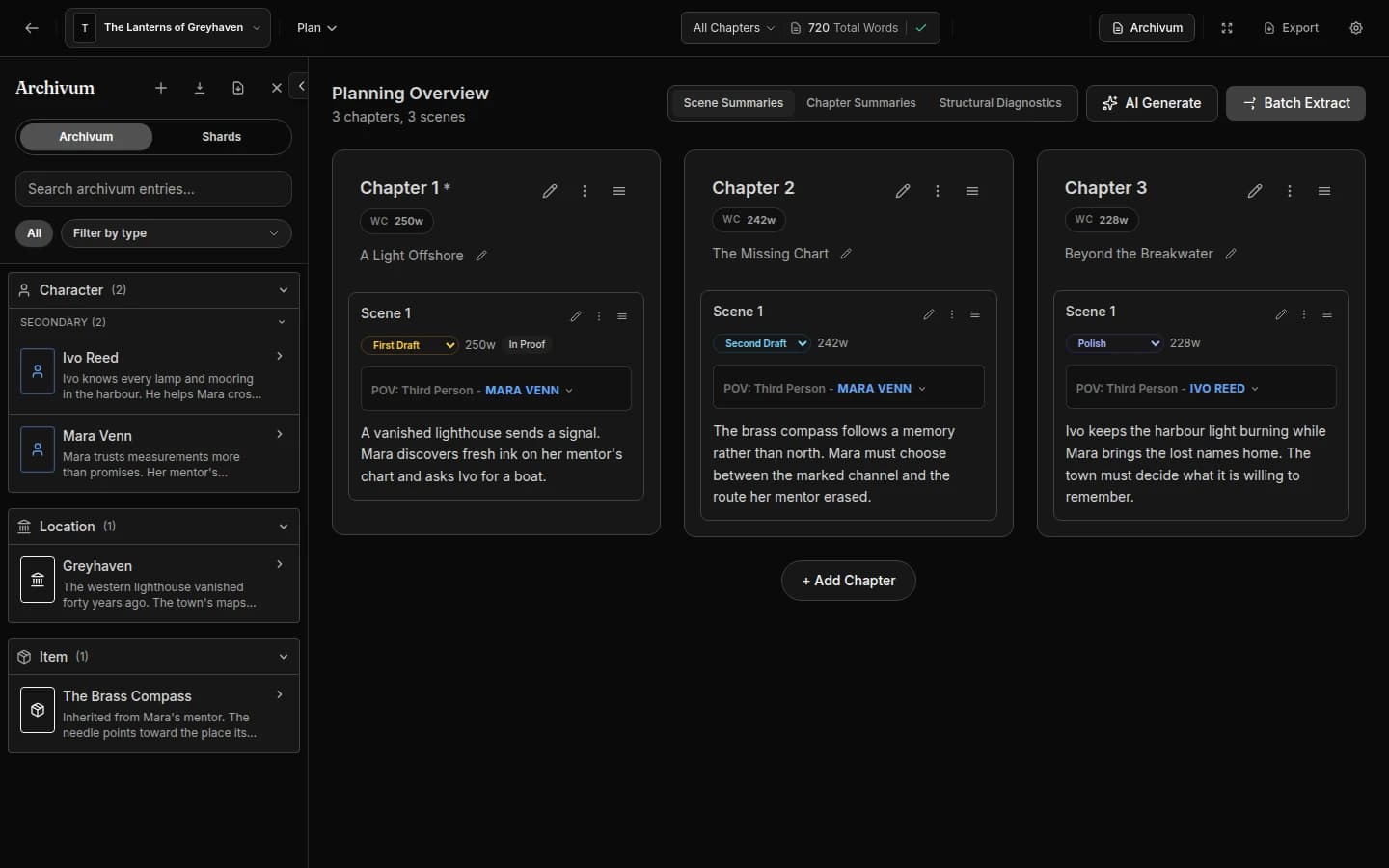
Your story bible, always open
Archivum keeps characters, places, factions and items for each project. Mara Venn's entry is open here: a synopsis, a fuller description, aliases and tabs for notes, relationships and mentions.
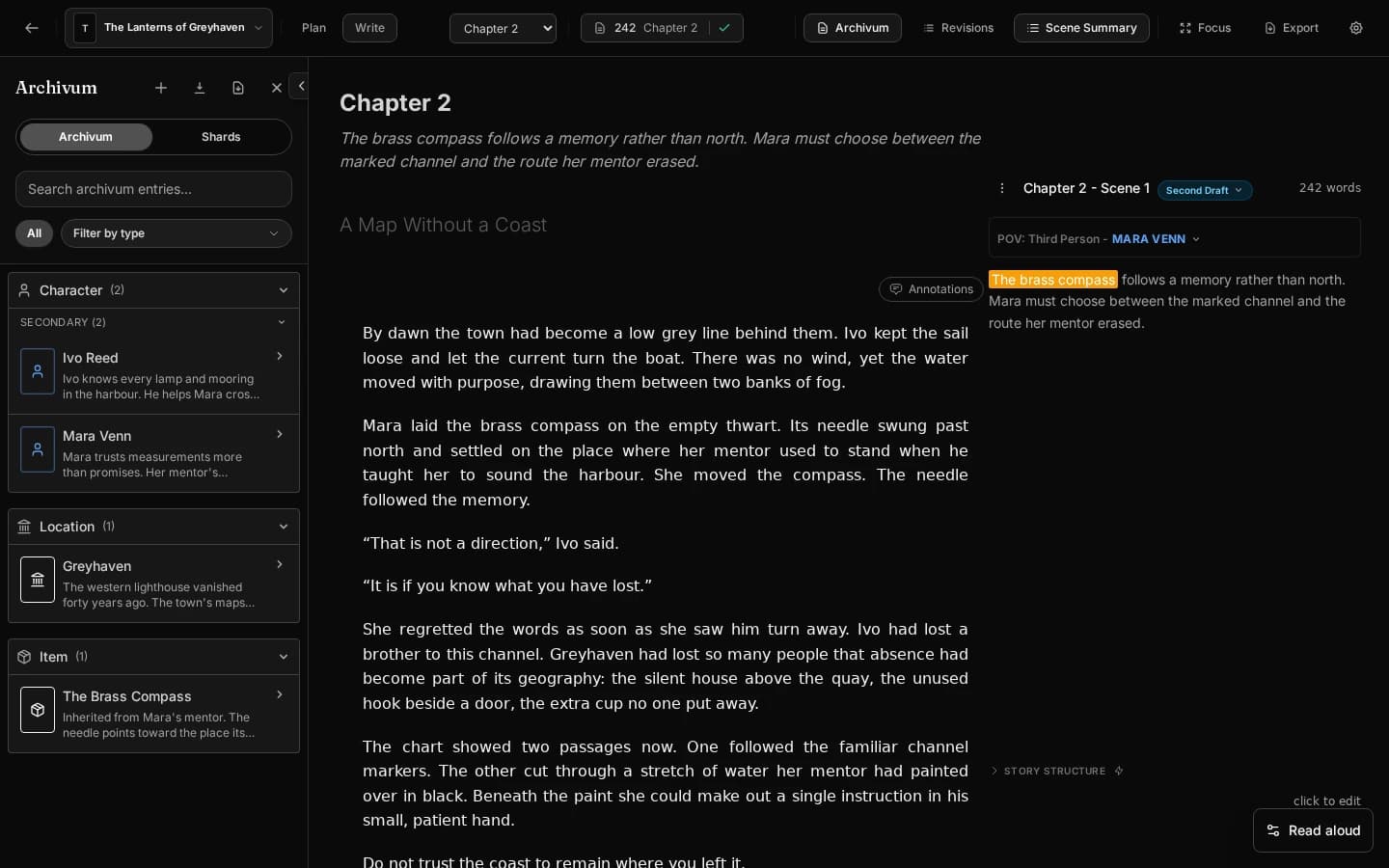
A focused manuscript editor
The Write view puts the prose first. Archivum stays open on the left, the scene panel on the right tracks draft stage, POV and word count, and the top bar keeps chapter navigation and export within reach.
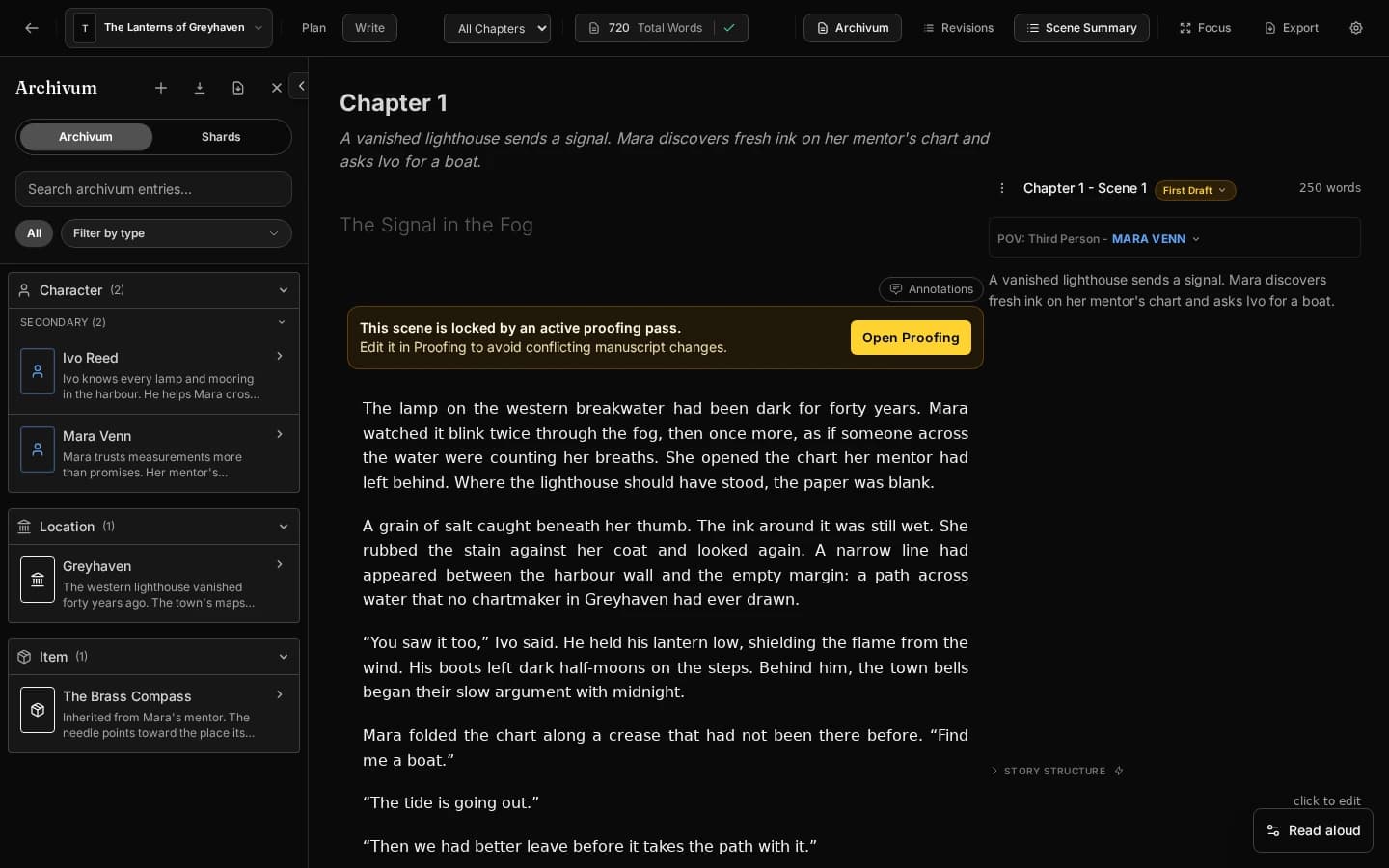
Scenes lock during active proofing passes
When a scene enters proofing, it locks in the Write view so two sets of edits cannot collide. A banner takes you straight to the proofing session; every other scene stays editable.
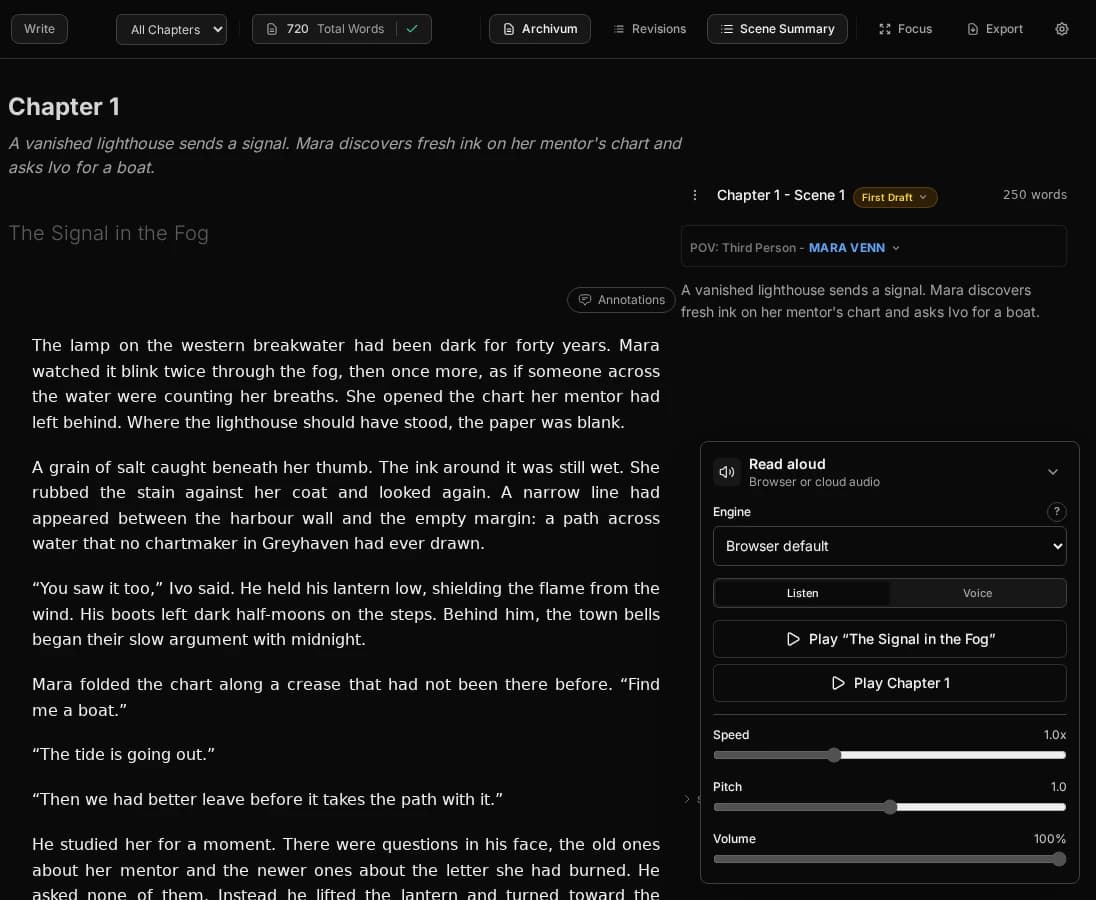
Hear the manuscript read back
Read Aloud plays the current scene or the whole chapter from the Write view. Choose a browser voice, a local voice that runs privately in your browser, or a cloud voice for narration.
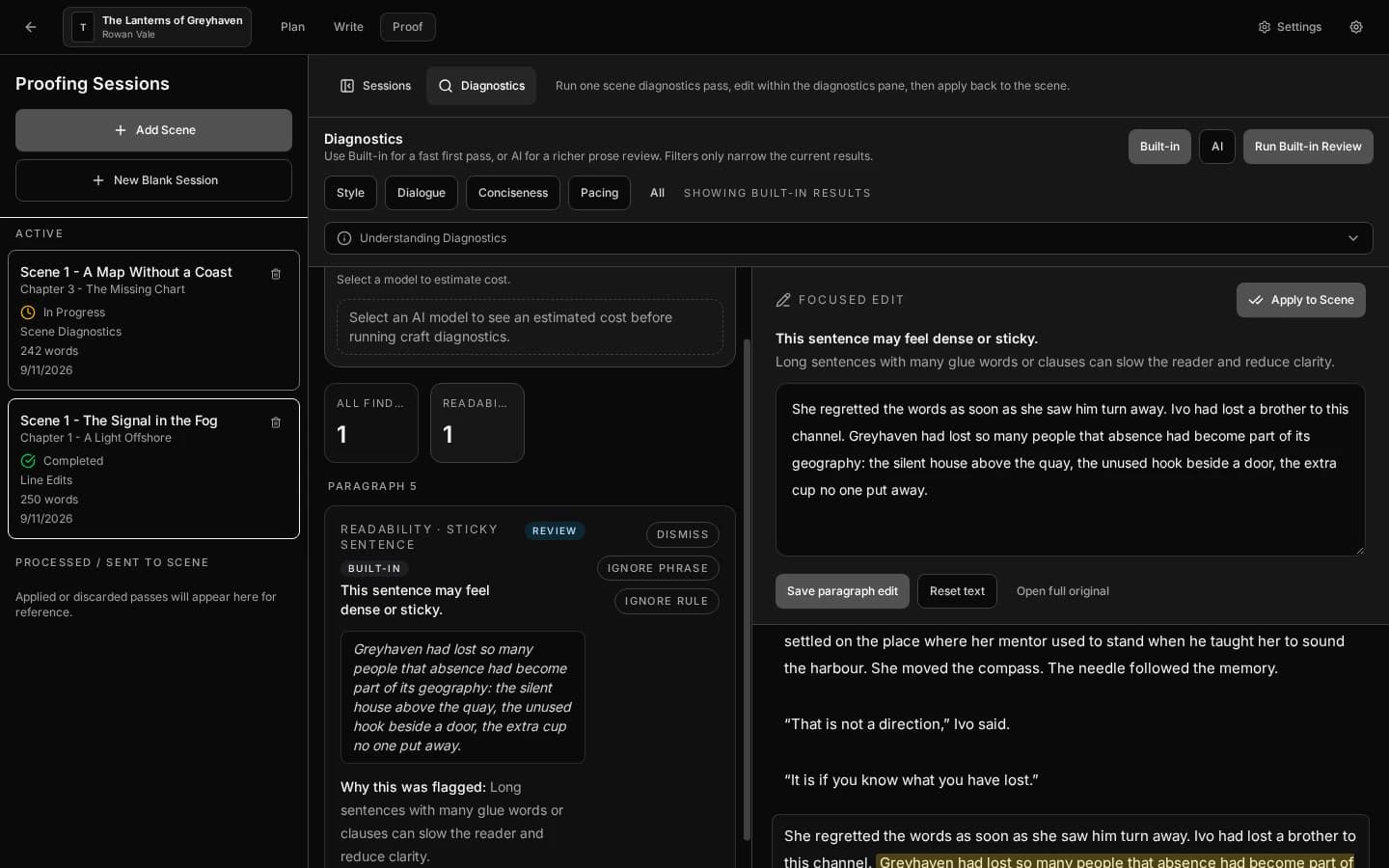
Scene Diagnostics — craft analysis with a focused edit
A Scene Diagnostics session runs the built-in engine over a scene and lists findings by category. Here it flagged one dense sentence in chapter 2. Select a finding and the focused edit panel lets you rewrite that paragraph and save it back without leaving Diagnostics.
Privacy Mode — offline, no AI
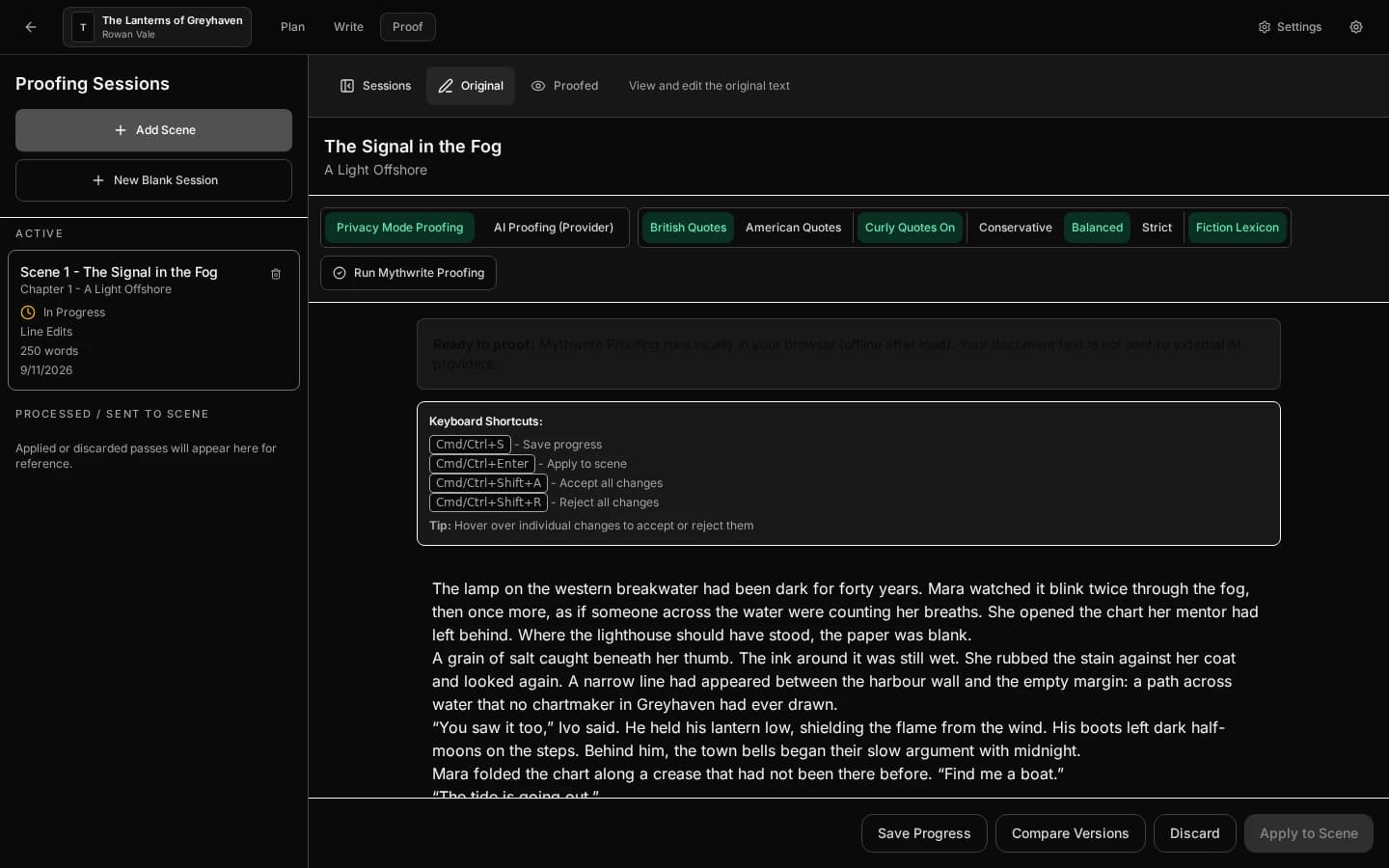
Mythwrite Proofing can run entirely in your browser with no external calls. Privacy Mode uses the built-in engine with your quote style, intensity and the Archivum-backed Fiction Lexicon, so the manuscript text never leaves your machine.
Review every change before it touches your manuscript
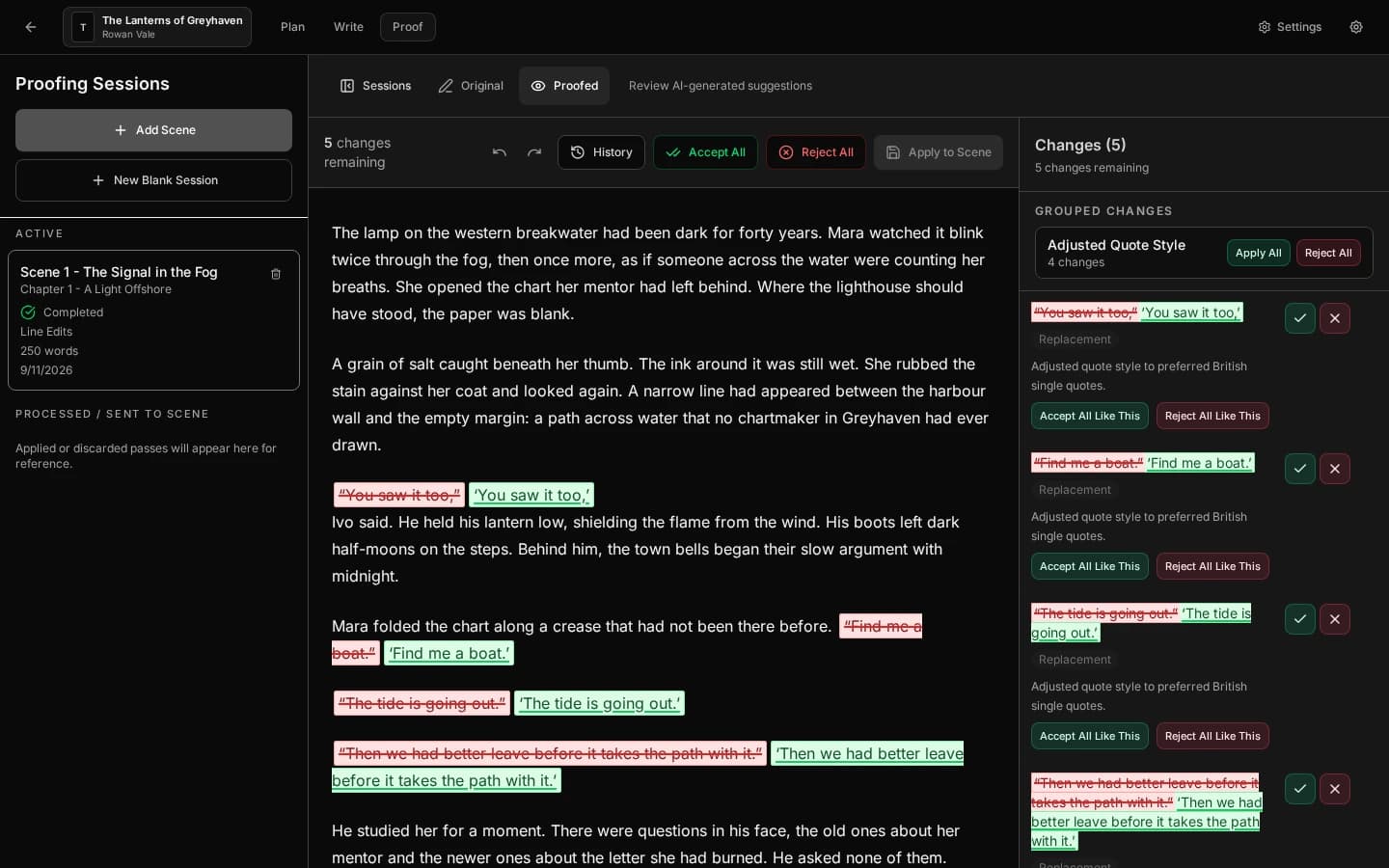
The Proofed view shows each suggestion inline: the original struck through in red, the replacement in green. Here a British-quotes pass found five changes. Accept or reject one at a time, by group, or all at once, and History keeps every earlier state.
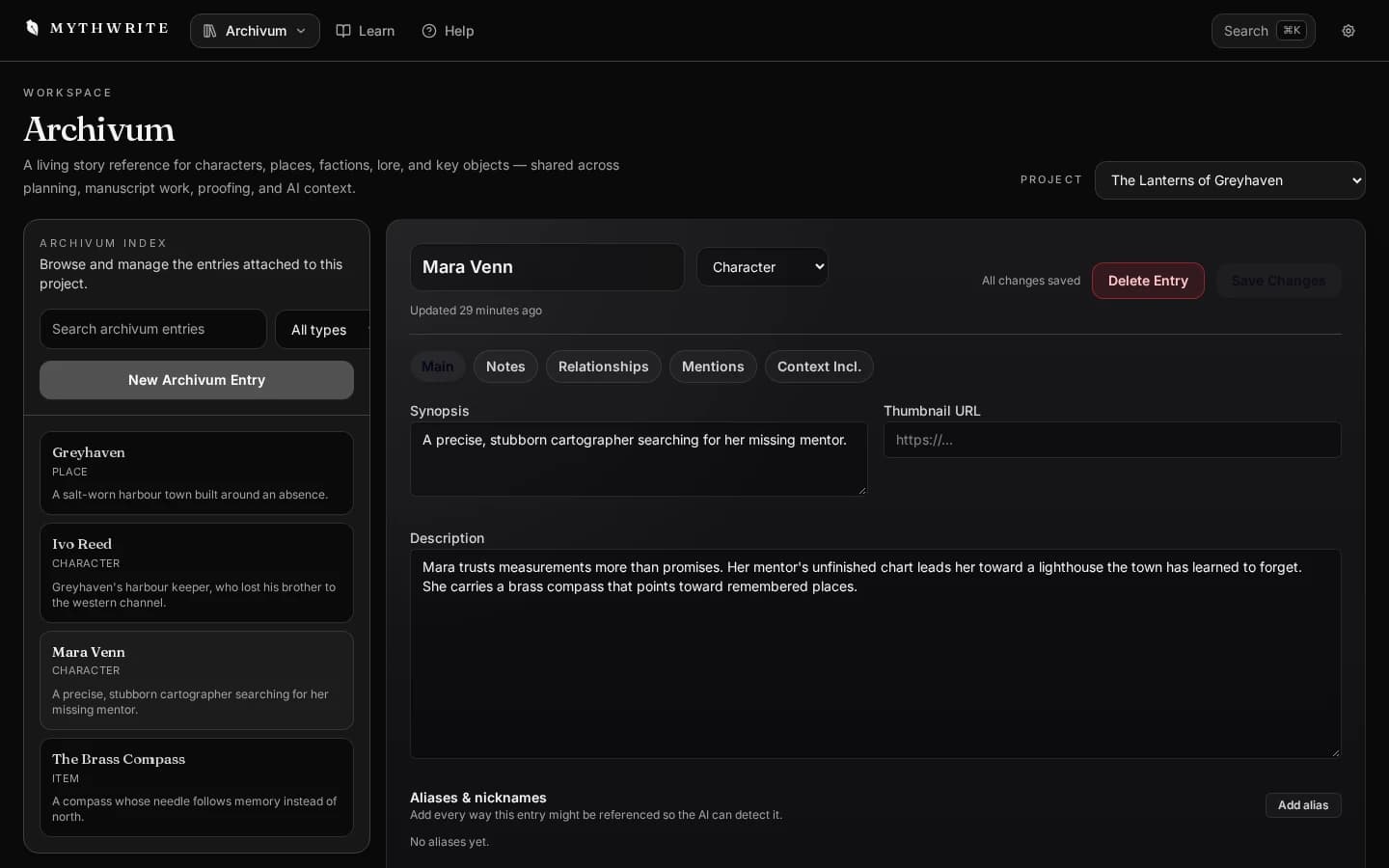
Take the manuscript out in the format you need
Export from the Write view at any point. Choose DOCX for editors and collaborators, a re-importable ZIP bundle for a full round trip, or Markdown, then decide exactly which content travels with the prose.